Troubleshooting Power BI Refresh: Data Gateways, Credentials, and Fixing 7 Common Failure Errors
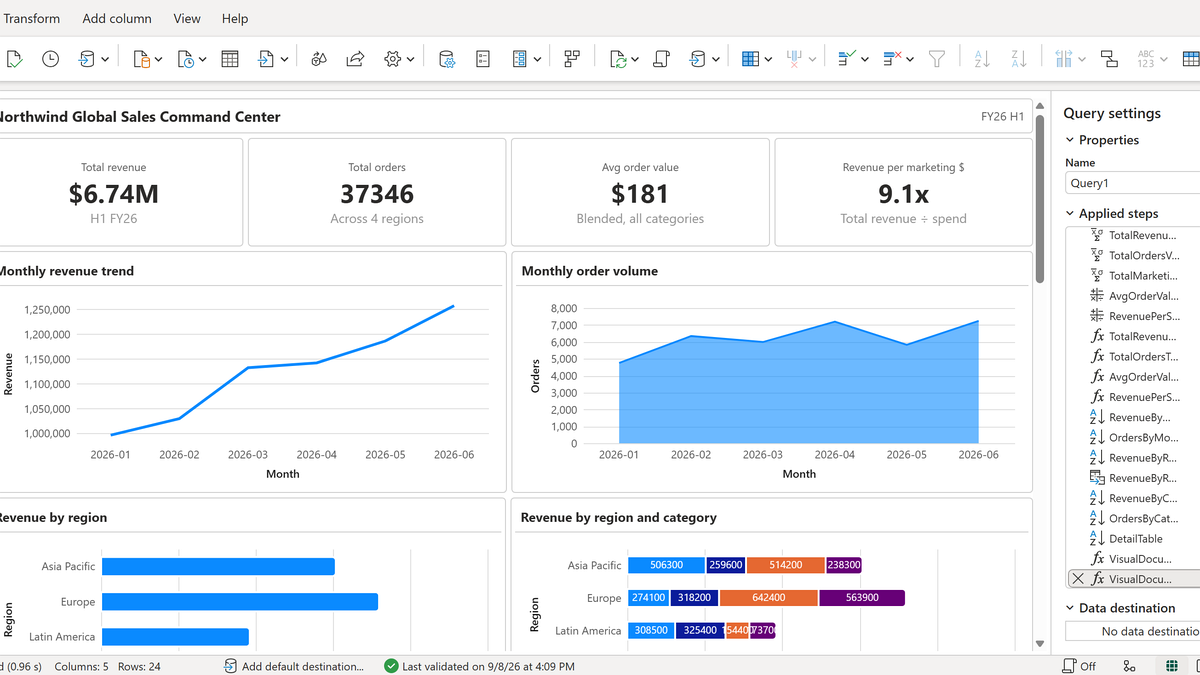
Authoring an interactive dashboard in Power BI Desktop is only half the battle. The true test of an enterprise analytical pipeline lies in its ability to refresh automatically and unattended in the Power BI Service.
When scheduled refresh breaks, executive dashboards display stale numbers or throw disruptive error banners. This guide covers the Power BI refresh architecture, how to properly configure the On-Premises Data Gateway, and how to systematically diagnose and resolve the 7 most frequent refresh failure modes.
1. How the Power BI Refresh Engine Communicates
Understanding failure points begins with tracing network boundaries:
[ Data Sources ]
    ├── Pure Cloud (SharePoint Online, Azure SQL, Web REST APIs) ---> Direct to Power BI Cloud
    └── On-Premises (Internal SQL Server, Corporate File Shares, Local Excel)
             │
             ▼
     [ Data Gateway ] (Agent resident inside corporate perimeter)
             │  (Outbound HTTPS / TLS 1.2 traffic via Port 443)
             ▼
[ Power BI Service ] (Scheduled Refresh / Semantic Model Execution)
- Cloud Sources: Sources like SharePoint Online, OneDrive for Business, Salesforce, or Azure SQL connect natively to Power BI Service without any gateway. Only valid OAuth2 credentials must be configured.
- On-Premises Sources: When data lives behind a corporate firewall (e.g.,
\\fileserver\finance\sales.xlsxor on-prem SQL Server), the cloud service cannot initiate inbound connections. The On-Premises Data Gateway acts as a bridge, polling the cloud via outbound secure connections to execute refresh queries locally and relay results back.
2. Standard Gateway vs. Personal Mode: Which One to Choose?
| Feature | Personal Gateway | Standard Enterprise Gateway |
|---|---|---|
| Target User | Individual developer, local testing | Enterprise shared production environment |
| Recommended Host | Personal desktop/laptop | Dedicated Windows Server (always on) |
| Availability | Only functions when user is logged in and PC is awake | Continuous Windows Service running independently of active sessions |
| DirectQuery / Live Connection | Not supported (Import mode only) | Fully supported |
| Multi-user Data Source Delegation | No | Yes, centralized permissions and credentials |
Production Rule: Never rely on Personal Gateway on a laptop for reports consumed by stakeholders. If the machine is closed or asleep at 06:00 AM, the refresh job fails automatically.
3. Step-by-Step Setup: Standard On-Premises Gateway
Step 1: Install and Register
- Download the Standard On-Premises Gateway from Microsoft's download portal.
- Install it on a dedicated Windows Server VM connected to your internal local network.
- Sign in using an administrative Microsoft Entra ID (Azure AD) work account.
- Give the gateway an identifiable name and store the Recovery Key in a secure enterprise password vault.
Step 2: Configure the Data Source in Power BI Service
- Navigate to app.powerbi.com > Settings (gear icon) > Manage connections and gateways.
- Select your gateway and click New:
- Connection Type:SQL ServerorFolder / File.
- Path: Always use fully qualified UNC paths like\\fileserver\finance\sales.xlsx. Never use mapped drive letters likeZ:\sales.xlsx, because mapped letters do not exist in the background service session ofNT SERVICE\PBIEgwService.
- Credentials: Enter Windows service account credentials with read permissions.
Step 3: Bind Semantic Model and Set Schedule
- In your Power BI workspace, open the Dataset / Semantic Model Settings.
- Expand Gateway connection and toggle the target gateway source.
- Expand Scheduled refresh:
- Toggle "Keep your data up to date" to On.
- Set frequency and designated time slots (up to 8 times daily on Pro, 48 on Premium/Fabric).
- Enter email recipients for failure alerts.
4. Diagnosing and Fixing the 7 Most Common Refresh Errors
Error #1: Invalid Credentials (DM_GWPipeline_UnknownError / 401 Unauthorized)
- Symptom:
The credentials provided for the source are invalid. Please update your credentials. - Root Cause: Expired service account password, revoked OAuth token, or missing credentials after first publishing from Desktop.
- Fix:
1. Open Dataset Settings > Data source credentials.
2. Click Edit credentials for each affected source.
3. For SharePoint Online: selectOAuth2, Privacy level:Organizational.
4. For On-Premises sources: selectWindowsand re-enter current credentials.
Error #2: Dynamic Data Source Blocking (Formula.Firewall)
- Symptom:
This dataset cannot be refreshed because it uses dynamic data sources. - Root Cause: A query dynamically constructs an endpoint via string concatenation without declaring a static base domain:
Web.Contents("https://api.acme.com/" & YearParam). Power BI Service security policies refuse to evaluate unverified remote hostnames. - Fix: Deconstruct the URL into a static base host combined with
RelativePathandQueryrecord arguments:
// REJECTED BY SERVICE:
let
    Source = Json.Document(Web.Contents("https://api.acme.com/v1/orders?year=" & Text.From(CurrentYear)))
in
    Source

// APPROVED FOR CLOUD REFRESH:
let
    Source = Json.Document(
        Web.Contents(
            "https://api.acme.com",
            [
                RelativePath = "v1/orders",
                Query = [year = Text.From(CurrentYear)]
            ]
        )
    )
in
    Source
Error #3: Missing or Renamed Source Column
- Symptom:
The column 'Transaction_Date' of the table was not found. - Root Cause: Upstream spreadsheet or database table altered a column header name, or a required column was deleted.
- Fix:
1. In Power Query, isolate the failing step.
2. If usingTable.SelectColumns, supplyMissingField.Ignoreto prevent catastrophic failures when non-critical attributes disappear:
= Table.SelectColumns(PreviousStep, {"ID", "Revenue", "Transaction_Date"}, MissingField.Ignore)
- Enforce schema governance with upstream data providers.
Error #4: Privacy Level Mismatch (Formula.Firewall)
- Symptom:
Formula.Firewall: Query references other queries or steps with incompatible privacy levels. - Root Cause: Power Query prevents private organizational data from unintentionally leaking into public or unverified external endpoints during query execution.
- Fix:
1. In Desktop: File > Options and settings > Options > Current File > Privacy.
2. Set privacy levels uniformly toOrganizationalacross all internal corporate endpoints.
3. Verify that Power BI Service credential settings mirror the exact same privacy level.
Error #5: Execution Timeout Expired
- Symptom:
Microsoft SQL: Execution Timeout Expired. The timeout period elapsed prior to completion of the operation. - Root Cause: Query takes longer than the default 10-minute database timeout, or exceeds total maximum refresh caps (2 hours for Pro, 5 hours for Premium).
- Fix:
1. Explicitly supply a longerCommandTimeoutparameter in your M code:
= Sql.Database("db-server", "Operations", [CommandTimeout=#duration(0, 0, 45, 0)])
- Verify that Query Folding is functioning so database indexes filter rows before transferring data over the wire.
Error #6: File Locked by Another Process
- Symptom:
The process cannot access the file because it is being used by another process. - Root Cause: A user has the Excel file opened exclusively on the file server when the background gateway attempts to read the file.
- Fix:
1. Migrate source workbooks to SharePoint Online / OneDrive, which supports simultaneous read locks during co-authoring.
2. If retaining on-prem shares, schedule refreshes outside business hours (e.g., 04:30 AM).
Error #7: Gateway Out of Memory
- Symptom:
Evaluation was canceled: Memory allocation failure. - Root Cause: Multiple large semantic models running transformations concurrently exhaust RAM on the host gateway machine.
- Fix:
1. Allocate at least 16 GB RAM and 4 vCPUs to the gateway VM host.
2. InMicrosoft.PowerBI.DataMovement.Pipeline.GatewayCore.dll.config, setStreamBeforeRequestCompletestoTrue.
5. Summary Checklist for Production Stability
- Use shared distribution emails rather than individual user mailboxes for failure notifications.
- Review Refresh History weekly to detect execution time drift before it hits timeout ceilings.
- Configure Incremental Refresh (
RangeStart/RangeEnd) whenever fact tables exceed several million rows.
Master Excel, Power Query & Power BI
Discover our practical courses designed to automate spreadsheets, clean data without code, and build audit-ready dashboards.
View Courses →